Google & Booking
How to Add a 'Book Online' Button to Your Google Business Profile (Salon Guide)
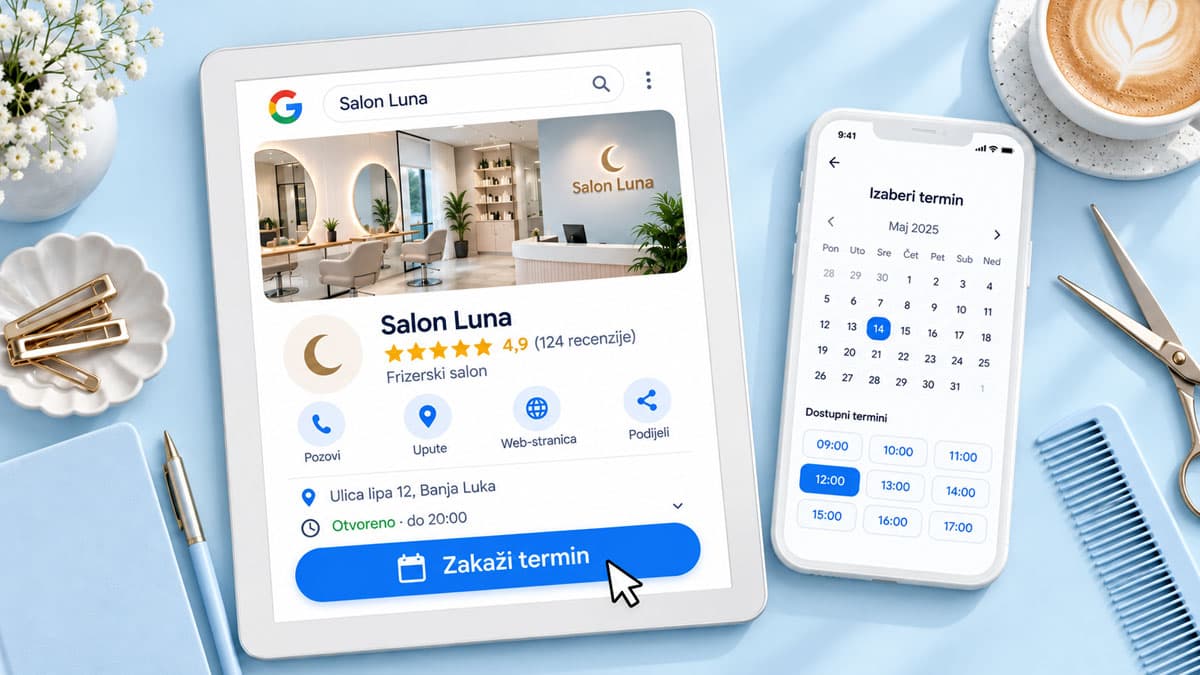
A client types “hair salon near me” into Google, opens your profile on Maps, checks the reviews — and calls. You’re mid-color, the phone buzzes in your pocket, you can’t pick up. They’re already calling the next salon on the list.
That gap between “found you” and “booked” is where appointments die. The fix is to add a “Book Online” button to your Google Business Profile — a booking link that lets clients book themselves instead of calling.
Google Business Profile has a field for exactly that. Fill it in and a client taps a button, lands on your booking page, and picks a service and a free slot — at 10 PM, on a Sunday, while you’re busy with someone else. Here’s how to add it, check it, and make the profile turn searches into appointments.
What you need before adding the link
Adding the link takes five minutes — but only if your profile is ready:
- A verified profile. Until you’re verified you can’t edit most details, including the link.
- The right primary category. Hair salon, beauty salon, nail salon, barber shop. Google shows booking options for eligible service categories like salons and barbers; with a generic category the section may not show up at all.
- Business hours filled in, including Saturdays and holidays.
- A booking link that goes straight to the page where clients pick a service and a time. In Buky you get it as soon as you enter your services and hours.
How to add a booking link to your Google Business Profile, step by step
Google changes its editing panel often, so button labels vary. The logic is always the same:
- Sign in to the Google account that manages your profile. Fastest way: search your salon’s name on Google while signed in; the management panel appears above the results.
- Open “Edit profile.”
- Find the bookings or appointments section — labeled something like “Bookings” or “Appointments,” usually close to the website field.
- Paste your booking link — the full URL, starting with https://.
- Save. Changes usually show within minutes; Google sometimes reviews edits, which can take a few days.
Check it on your phone the way a client would
Most people skip this step; it matters most. Open Google Maps on your phone and search for your salon. For eligible service categories, Google usually shows a booking button next to “Call” and “Directions,” and the link is listed in your profile details either way.
Tap it and go through the whole flow as a client, from picking a service to the confirmation. If the link goes to the wrong place or there are no free slots because hours weren’t set, a client won’t tell you — they’ll just leave.
How to make your profile actually convert
The link is the door; the rest of the profile is the storefront.
- Photos of your work, not stock images. Yesterday’s balayage, last week’s fade, a fresh set of nails — not a logo and a 2019 photo of the front door.
- A services list with prices. Women’s cut $45, color from $90, manicure $35. A client who knows the price taps “Book.” One who doesn’t calls to ask.
- Hours that are actually current. Holidays, vacation, the short Saturday. Wrong hours earn “drove over and it was closed” reviews.
- Reply to reviews, including the bad ones — short and polite. New clients read your replies before they tap anything.
- Post a “Book online” update. A short post on your profile with a photo and the link: “You can now book online, 24/7, no need to call.” Repost it every few weeks.
What happens after the client taps
For a client who found you on Maps at 9 PM, with the link pointing to a Buky booking page:
- They pick a service — say, a cut and blow-dry, 45 minutes, $45.
- They see only the slots that are actually free. Hours, breaks, and booked times are excluded.
- They enter a name and phone number and confirm.
- They immediately get an automatic confirmation, and the day before, an SMS or email reminder.
You do nothing — the appointment shows up in your calendar. That’s exactly how clients expect to book today — without calling and waiting for a reply.
| Situation | Profile with a phone number only | Profile with a booking link |
|---|---|---|
| Client finds you at 9 PM | Sees “Closed,” calls tomorrow if they remember | Books right away |
| You’re mid-service | Missed call, they dial the next salon | Appointment adds itself |
| “Anything open on Saturday?” | You flip through the book while they hold | They see the free slots on screen |
Mistakes that make the button useless
- The link goes to your homepage. A client taps “Book,” lands on your home page, hunts for the booking button — and gives up. Link the booking page itself.
- The link goes to Instagram. An Instagram profile isn’t booking; it’s a DM and a wait. For Instagram bookings, put the same booking link in your bio — but the Google field gets the booking link, not your profile.
- Different hours on Google and in your booking system. Google says Saturdays until 5 PM; your booking system says 3 PM. When you change hours, change them in both places.
- Forgetting the website field. If your salon doesn’t have a website, put the same booking link in the “Website” field, so it stays visible even if Google doesn’t show a dedicated button for your category.
How Buky works with Google Business Profile
There’s no special integration to set up — and that’s the point. The button on Google doesn’t book the appointment inside Maps; it takes the client to your Buky booking page, and that page does all the work:
- One link for every channel. The same link goes on Google, in your Instagram bio, in a WhatsApp or text message, and on a QR code at the front desk.
- Services, prices, and hours set once. Every service has its own duration and price; breaks and days off are locked.
- One calendar for every appointment. From Google, from Instagram, and the ones you add manually when someone still calls — so there’s no double booking.
- Confirmations and reminders run themselves. SMS and email reminders cut no-shows by up to 50%, and you already know what every no-show costs you.
The START plan at $29/month pays for itself the moment two clients who would have called at the wrong time book online instead.
FAQ
Does adding a booking link to Google cost anything?
No. Google Business Profile is free, and so is the appointment link field. You only pay for the software behind the link — Buky has a 14-day free trial, no card required.
Do I need a website to have a booking button?
No. Your Buky booking link is a standalone page that works without a website. If you don’t have one, put the same link in the website field too.
Why don’t I see a bookings section in my profile?
Usually it’s the category or verification. Google shows booking options for eligible service categories like salons and barbers, and only on verified profiles. Check your primary category, and in the meantime put the link in the website field and in a profile post.
Conclusion: let Google send you appointments, not just calls
Google already shows you to people looking for a salon right now. One link in your profile turns that interest into a booked appointment instead of a missed call — without depending on the phone and without a single message you have to type.
Try Buky free for 14 days and put a booking link on your Google profile today – no credit card, no commitment.